

Monitor runs
Every run of a workflow is recorded as a Job, with one Task per dispatched step. ROC reads them in the Workflow Builder’s Executions tab.
Executions
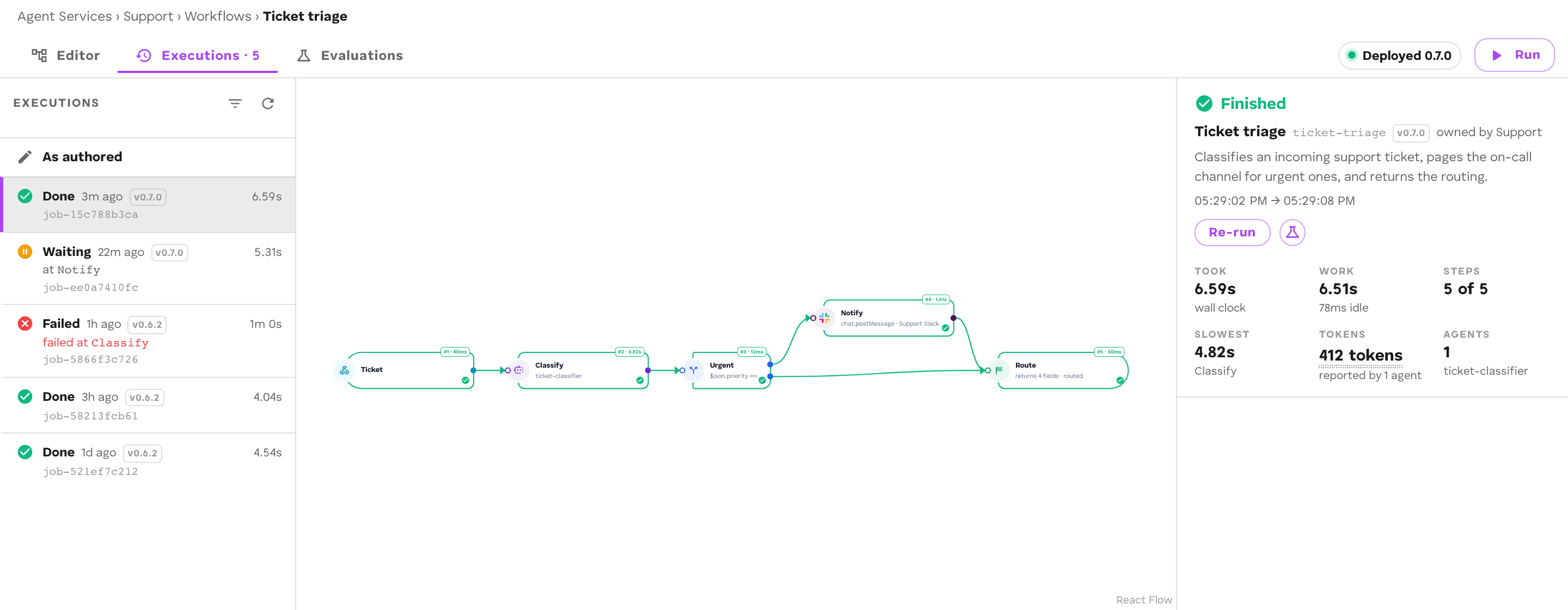
Open the workflow (Agent Service → Workflows → the workflow) and choose the Executions tab, shown as Executions · N once there are runs.
- Run starts a run of the deployed version. It opens Run this workflow, with What starts it prefilled from the trigger’s example payload, and Who takes part when a step asks the run’s participants. The chip beside it shows where runs go: Runs in {organization} · {scope}.
- The list shows each run with its status, the version it ran (
v0.1.4), and where it stopped (failed at {step}, at {step}). - Filter runs by status: failed, running, waiting, stalled, done.
Runs use the version that was live when they started, not the canvas. If the canvas has undeployed changes, Run warns that the run uses the live version.
Statuses
| Status | Headline in ROC | Meaning |
|---|---|---|
| running | Running … | Steps are executing. |
| waiting | Waiting at … / Needs a decision at … / Asked you something at … | Parked on a person, on an agent’s question, or on an authorization. |
| done | Finished | Reached its end. |
| failed | Failed at {step} | A step failed; the run records the reason. |
| stalled | Nothing picked up {step} | A step’s edges all had conditions and none passed. |
| cancelled | Cancelled by {who}: {reason} | Closed by the person who started it. |
A run’s detail
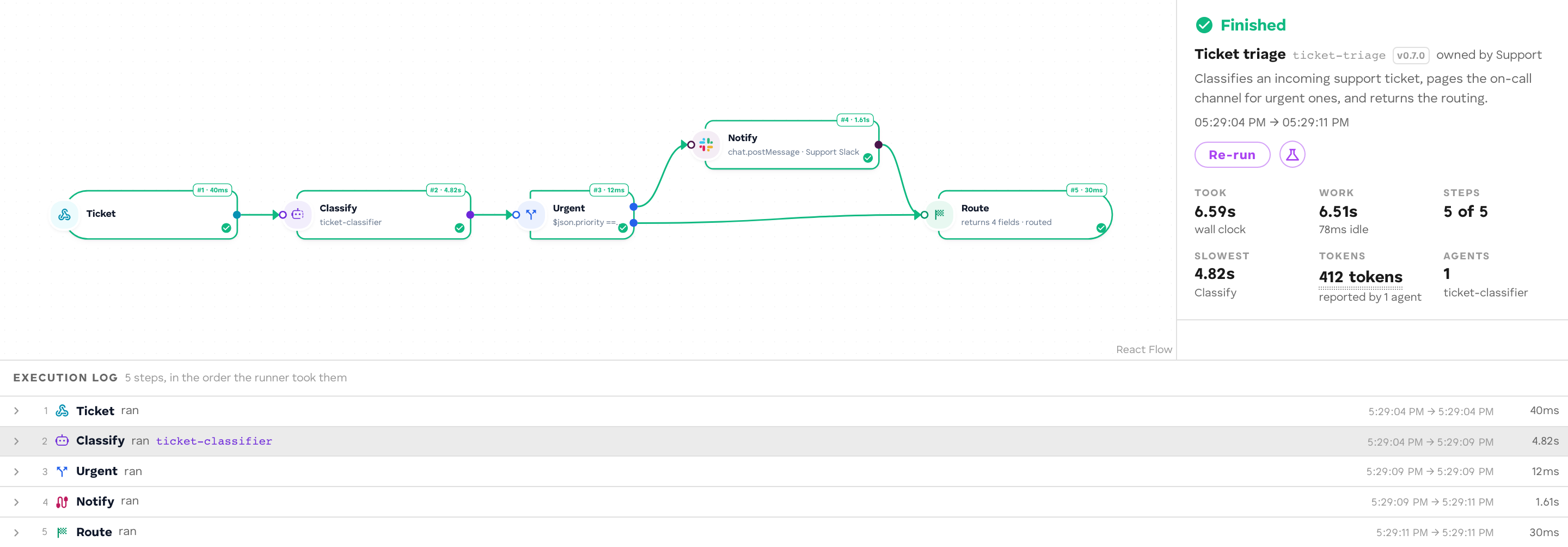
Open a run to see the graph with each step’s state (Success, Failed, Skipped, Waiting on a person, Waiting on an agent, Running, Not run), and the run’s log.
Select a step to see:
- what it Received and Produced: the carried item before and after;
- for an agent step, what was Sent to the agent and what it Returned;
- for a model step, the alias and request; for a cubby step, the SQL and the rows read or changed;
- the error, for a failed step.
Long values are shortened in the run view: strings over 120 characters keep their start and say how long they were, and lists keep their first 20 elements.
The run summary shows Took, Steps, Slowest, Model calls, Tokens, Cost, Agents, and Cubby calls. The Summary panel shows the run’s outcome (including the pinned widget), the run, and the events it Announced.
Replay
The timeline under the canvas steps through the run hop by hop: Play / Pause, Previous step, Next step, Previous hop, Next hop. Replay only animates the recorded run; it starts nothing.
Act on a run
| Action | What it does |
|---|---|
| Answer a waiting step | The waiting step shows a card: Approve / Reject for an open gate, the step’s own answer buttons and form for an assigned step, a text box and Send to {agent} when an agent asked a question. Send back to {step} with this note returns the run to an earlier step. See People in workflows. |
| Retry “{step}” | Resumes the same run at the failed step, with the input it had. Later steps appear in the same run. Use it after fixing the cause (an agent, a connection, a cubby schema). |
| Re-run | Starts a new run from the top with the same trigger payload: real agents, real tokens, a new Job, billed again. |
| Add to dataset | Saves the run’s input and result as a case for evaluations. See Datasets. |
Versions and history
Each Deploy writes a new version and makes it live. The Deploy button shows Deployed {version} when the canvas is what runs.
The arrow beside Deploy (Versions and history) opens:
- Versions: every version, the live one marked, with Deploy on the others to make one live.
- Save as version {next} — don’t deploy: record the canvas as a version without making it live.
- Deployment history…: one entry per deploy, each holding the exact graph that was live. Open loads one onto the canvas as an unsaved draft; Make live rolls back to it without touching your canvas.
- Undeploy and Archive workflow…. An archived workflow receives no events and is hidden from the dashboard until you restore it.
Discard throws away unsaved canvas edits and reloads the deployed graph.
Metrics
The workflow’s agent page (Agent Service → Agents → the workflow → Overview) and the Metrics · {name} view opened from the Workflows list show, over 1 h, 24 h, or 7 d:
| Panel | Shows |
|---|---|
| Workflow runs | Runs, Completion rate, Failed rate, Stuck, and runs over time by outcome. |
| Tokens | Tokens over time. |
| Compute limit (GPU units) | Use against the limit. |
The agent page also opens the workflow’s Jobs and Logs.
Why a run failed, parked, or stalled
Work from the run outward: read the run’s own record first, then the cubby rows it wrote, and reach for logs last. Start from the run’s first step that is not Success; its error names the step and the reason.
Failed
A failed run is over. Its reason is on the failed step (workflow.step_failed) and on the run (workflow.failed). Fix the cause, then Retry the step or start a new run.
Parked
A waiting run is parked: idle, holding nothing open, until the event it waits for arrives.
| Parked at | Waits for | If it never arrives |
|---|---|---|
| A human step | A person’s answer | Expected. Check the step is assigned to someone who can see it. |
| An agent step | The agent’s answer | The agent is not connected, not deployed, or failed without answering. Open the agent from Agents and check its Jobs and Logs. |
| A connector action | connector.action.succeeded or .failed |
Check the connection in the vault. |
A workflow that parks anywhere other than a human step, or an agent that asked a question, has a bug in the graph or in the agent.
Stalled
A stalled run stopped because no edge out of a step matched: every condition on that step’s outgoing edges was closed for this item (Nothing picked up {step}). Check the field the condition tests in the step’s Produced, and add an edge without a condition as the default.
The run never starts
No run appears in Executions after the trigger fired:
- The workflow, or an agent it calls, is not connected to the vault, or the consent was not approved. Press Run in ROC and approve the connection; see Connect to a vault.
- The trigger’s event type does not match the event that was sent. Check the trigger step.
- A webhook call was refused (
401,403,413,429). Read the webhook response; see Triggers.
Errors and their causes
| What you see | Cause | Fix |
|---|---|---|
| Fails at the first step with a list of graph problems | The graph does not validate. | Fix the problems the Builder or cef build lists, deploy again. |
model alias not declared: '<alias>' |
The model step’s alias is not in the workflow’s models, or does not match the alias inside model.json. |
Declare it under the model’s own alias; see Models. |
answered without '<field>' |
The agent’s answer lacks a key the step’s answer shape declares. | Tighten the agent’s instructions, or the shape. |
| A field is empty in a later step | The field was never on the item when that step ran; mappings to missing fields resolve to empty. | Open the step before and check Produced. Declare an answer shape for fields you depend on. |
result field '<f>' expected number, got string |
The Result’s type check caught a changed type. | Normalise the value in a step before the Result, or correct resultTypes. See Results. |
no edge out of '<step>' matched |
Every condition after that step was closed for this item. | Fix the condition, or add an unconditioned default edge. |
no such table in a cubby step |
The cubby or table was not declared, or the migration was never pushed. | Declare it and run cef cubby push. |
no cubby is selected / no SQL is set |
A Cubby step has an empty alias or SQL. | Fill in the step. |
SQL may not interpolate the run's data |
A cubby step’s SQL contains {{ $json.… }}. |
Use ? and args. |
could not publish '<type>' |
The event was refused, typically over 1 MiB. | Declare the publish step’s payload; send references, not content. |
… over the 1048576-byte limit a waiting step can hold |
The item carried into an agent or human step is too large. | Shrink the item before the step. |
| A memory step says the bank “accepted this write and kept nothing” | The connection does not allow that scope or privacy level. | Use a scope and privacy the vault granted. |
A connector step fails with no_access |
The workflow has no grant for that action. | Deploy again from the Builder, or grant access; see Connectors. |
loop limit reached |
A loop edge ran out of rounds with no exhausted step. | Raise Max rounds or set When the rounds run out. |
gave up after 12 exchanges without a final answer |
An agent and a person went back and forth without the agent finishing. | Make the agent ask for everything at once. |
| Waiting, Needs a decision / Asked you something | A person or an agent’s question is pending. | Answer it from the run. |
| Waiting, Waiting for authorisation | An agent needs access granted. | Grant it, then I have granted it — run this step again. |
| Run Done but a widget shows nothing | The cubby step wrote to another alias or table than the widget reads, or the row’s key does not match. | Open the run’s Cubby step, query the row, compare with the widget’s query. |
| Two rows for one request | The start was delivered twice into different contexts, or a write is not keyed on the run. | Send an Idempotency-Key; key writes on run_id. |
| An experiment’s runs all error | The experiment could not start runs: wrong vault, workflow not connected, missing credentials. | Read the experiment’s error; check --vault and the connection. |
See Limits for every hard limit and its error.
Inspect cubby data
Cubby rows are the durable record of what a run did; logs expire.
- From a run: select a Cubby step and choose Open cubby. It opens the Agent Service’s cubby in the vault the run executed in, with a SQL runner.
- From the sidebar: Cubbies lists the Agent Service’s cubby declarations; Inspect data opens the same inspector.
Query by the run: every run’s id is run-<context>, and a well-designed table keys on it.
SELECT * FROM triage_results WHERE run_id = 'run-t-1';Design tables so a SELECT answers “what happened”: a status column that advances (in_progress, done, failed), and the reason on failure. A stuck row then tells you which stage broke long after the logs are gone.
Read logs
Open the workflow’s agent page (Agent Service → Agents → the workflow) and select Logs. Filter by Time range and Level, and narrow to one Job or Task. Steps that run code agents log under those agents; open them the same way. How agents log, and how to read logs with the Vault SDK, is on Test and debug a code agent.
Reproduce it locally
Most workflow bugs reproduce in-process. Take the failing run’s start payload (open the run in Executions, or capture it with Add to dataset), and replay it through @cef-ai/testing with the model and agent answers the run received. Keep the test once it passes: it is the regression test for the fix. See Test a workflow.
Limits
| Limit | Value |
|---|---|
| Task log query window | 24 hours. Older logs come back empty. |
| Finished Jobs and their Tasks | Kept 7 days, then deleted. Capture runs worth keeping as dataset cases. |